


Remote for Roku TV Remote
4.7175.00 Reviews
App Specs
- Version
- 11.0
- Updated On
- License
- Free
- Downloads
- 50,000+
- Developer
- Naba
- Categories
- House & Home
- Platform
- Android
Screenshots
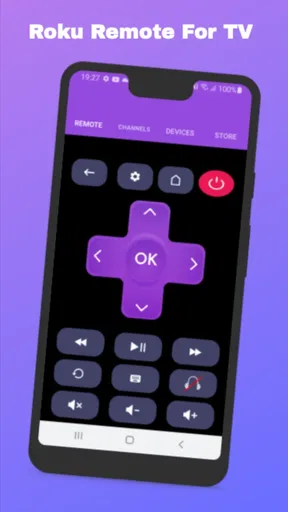
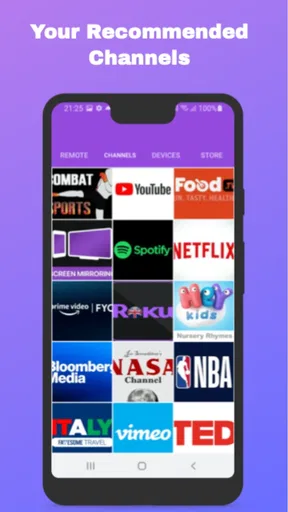
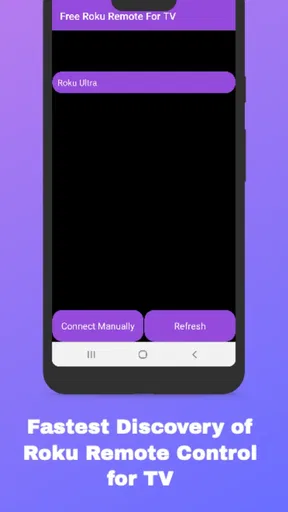
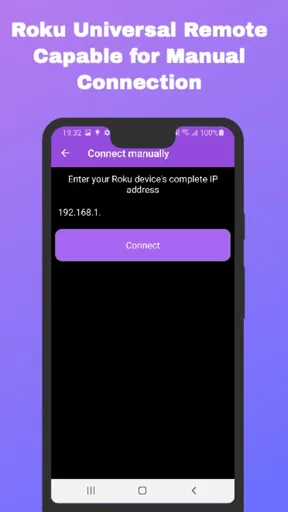
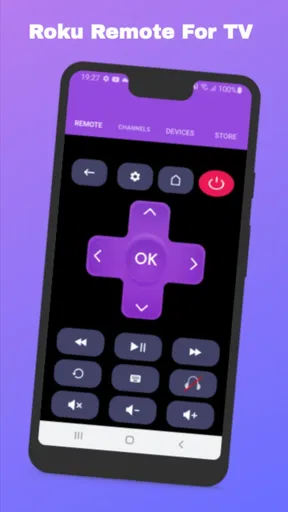
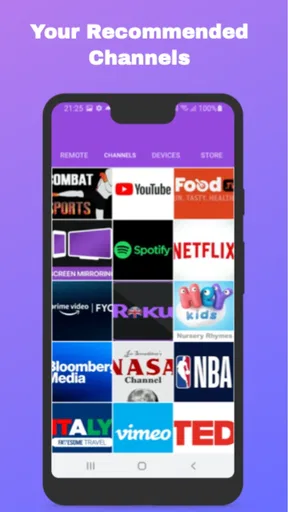
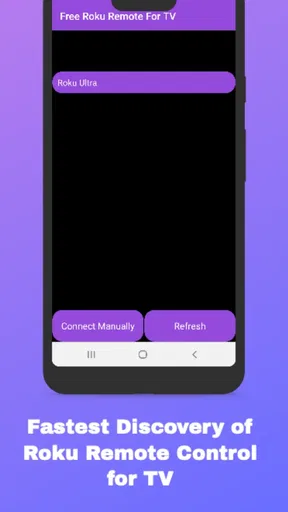
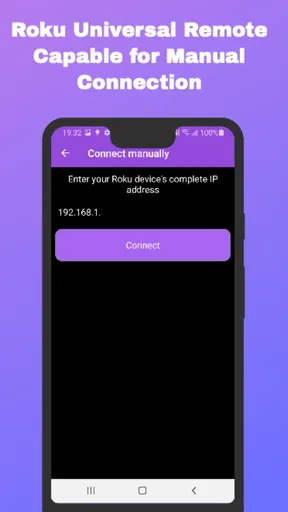
 Analysis by AppCompare
A phone remote is most useful when it solves a small, familiar problem: the Roku remote is missing, someone else has it, or entering text with a directional pad feels like slow work. Remote for Roku TV Remote is built for that kind of moment, turning a compatible phone into a way to control Roku TVs and devices. I’d think of it as a convenient backup rather than an automatic replacement for every household’s physical remote, because the experience depends on the phone and TV being able to communicate over the home network.
Why the network matters in ordinary use
The key setup detail is that your phone and Roku need to be on the same Wi-Fi network. That makes this more than a remote you can use from anywhere just because your phone has a connection: if you’re on mobile data, connected to a guest network, or using a different Wi-Fi network from the TV, the two devices may not be able to find each other. I’d check that shared connection before troubleshooting the app itself.
That network dependency is easy to overlook when everything is working. If you move the phone between home Wi-Fi and cellular service, or your router changes which network the phone joins, the remote may stop responding until both devices are back on the same network. In a home with separate networks for guests and household devices, choosing the usual home network for both is the sensible first step.
Useful from the sofa, less certain away from home
For everyday couch use, the phone format is appealing: it’s already in your hand, and the on-screen controls are easier to reach than a remote buried under a blanket. It can also be handy when you want to enter a search or password without navigating one character at a time on the television. I would not treat it as a way to operate the TV while away from home, though; the described setup is based on a shared local Wi-Fi connection.
It suits people who regularly use their phone while watching, households that misplace remotes, and anyone who finds TV text entry awkward. It is a less natural fit if you prefer a dedicated button remote, want a control that remains available when your phone is elsewhere, or need to operate Roku from another network. In those cases, the physical remote—or the control options already available on your Roku setup—may be the simpler choice.
What to try when the connection drops
If the app stops controlling the device, I’d start with the basics rather than repeatedly tapping buttons: check that the phone and Roku are connected to the same Wi-Fi, confirm the TV is on, and allow the app a moment to find the device again. A phone that has switched to another network can explain a sudden loss of control even if the app itself has not changed. Returning to the shared home network is a more useful first check than assuming the Roku needs to be reset.
There is a practical trade-off here. A physical remote does not rely on your phone being charged, unlocked, or connected to the right Wi-Fi, while a phone remote gathers several household tasks into one device you already carry. I’d keep the Roku remote somewhere predictable if uninterrupted access matters, and use the app as a convenient alternative for searches, quick adjustments, and those inevitable moments when the remote vanishes.
Worth Reading Before You Choose

EA SPORTS FC Mobile 26 Is a Bigger Football Game, but It Takes Time

Flipboard Shows What News Apps Must Do Beyond the Feed

Switching to Android Auto Means Rethinking Your Driving Routine

Google Calendar Makes a Crowded Week Easier to Manage

Ludo King Makes the Most of the Minutes Between Plans

Baby Panda World Brings Quick Play to Modern Phones, but Its Game Library Feels Busy
Be thoughtful about phone use and data
Because this is a remote-control app, its most obvious job is sending commands to a Roku device, not replacing the video service playing on the television. I wouldn’t assume that controlling the TV means streaming the TV picture to the phone or that it consumes mobile data in the same way as watching a show. The connection described for setup is local Wi-Fi, so keeping the phone on the home network is the straightforward way to use it without turning a remote-control task into a cellular-network workaround.
If you are trying to conserve battery, the most useful habit is to open the remote when you need it and avoid leaving the screen awake after you have finished. The published experience describes battery use as efficient during extended control, but a phone’s overall drain still depends on its own screen and use. For a short adjustment or a quick search, the phone is convenient; for a long viewing session, a dedicated remote may feel more effortless simply because it does not compete with your phone’s other jobs.
Getting Started: Easy Peasy Setup
First things first, downloading the app is a breeze. Whether you’re on Android or iOS, just head over to your respective app store, and you’ll have it in no time. Once installed, the setup is delightfully straightforward. Just make sure your phone and Roku device are connected to the same Wi-Fi network. Within seconds, the app detects your Roku TV, and you’re ready to go. No fuss, no muss!
Sleek Design and Intuitive Interface
The app’s interface is as intuitive as it gets. It’s like someone took the physical Roku remote and magically transferred it to your screen. All the buttons you need are right there, from volume control to navigating menus and even launching apps. I found the design sleek and user-friendly, catering to both tech-savvy users and those who might consider themselves a bit technologically challenged.
Key Features that Shine
One of the standout features is the voice command capability. It’s super handy when you’re feeling too lazy to type. Just tap the microphone icon, speak your command, and voila! It’s like having a personal assistant dedicated to your TV needs.
Another cool feature is the keyboard function. If you’ve ever struggled with the on-screen keyboard on your TV, you’ll appreciate this. Typing passwords or searching for your favorite show becomes way less of a hassle.
Performance and Reliability
Throughout my testing, the app performed like a champ. The response time is impressive, with minimal lag, making it an ideal substitute for the traditional remote. Whether you’re flipping through channels or adjusting settings, the Remote for Roku TV Remote app keeps up seamlessly.
Battery usage is also surprisingly efficient. I was initially worried that using my phone as a remote would drain the battery, but it held up well, even after extended use.
Personal Experience: A Game Changer
Honestly, this app has been a game changer in my living room. No more fighting over the remote or digging through couch cushions. Plus, the ability to control the TV from anywhere in the house is a perk I didn’t know I needed. Imagine being in the kitchen and queuing up a show without missing a beat.
Ending Thoughts: Worth the Download
All things considered, the app from Naba sits in the House & Home category and is free to install. Its audience rating averages 4.7 from around 3 thousand ratings, with roughly 175 written reviews, and it has passed 50 thousand installs. It is rated for Everyone; version 11.0 is listed for devices running Android 4.4 or later. Those details make it an approachable option to try, though I’d still judge it by whether your particular phone and Roku connect reliably in your home.
For a realistic example, imagine you’ve settled in for a film and discover the remote is in another room just as a sign-in prompt appears. With the phone on the same Wi-Fi, the keyboard can save the clumsy sequence of moving a cursor across the TV’s on-screen letters. If you are already holding your phone, that is a real convenience; if it is charging upstairs or the network is unavailable, the regular remote wins. The useful decision is not “phone or physical remote forever,” but which one is quicker for the task in front of you.
Compared with the usual alternatives, this app’s advantage is having controls and text entry on a device you already carry. The Roku’s physical remote is simpler to grab, needs no app navigation, and remains dedicated to the TV. A manufacturer’s own control option, where available on your device, may also be preferable if you want to stay within the built-in ecosystem. I’d choose this app when finding the remote or typing is the annoyance; I’d choose a physical remote for guests, children, or anyone who wants tactile buttons without handling a phone.
Voice input is another situation where expectations matter. It can be quicker than typing when you know what you want to search for, but speaking is not always practical in a shared room or when the television is loud. In those cases, the keyboard is the quieter fallback. I’d also keep the phone’s keyboard workflow in mind for passwords: it can make entry less tedious, but it does not remove the need to have the correct account details ready.
The app is a House & Home utility by Naba, released on August 19, 2022. It is free, which makes trying it a low-commitment choice, but “free” does not mean it can solve every connection problem. Device discovery still relies on the home network behaving as expected. If you have a mesh system, guest Wi-Fi, or a router that separates devices, checking network placement is a sensible first troubleshooting step before reinstalling anything.
I would also separate control from content. This is for operating Roku, not a substitute for the streaming apps or subscriptions you use on the TV. If your goal is watching on a phone screen, managing accounts, or controlling devices outside the shared home network, this is not the tool I’d reach for. Its best role is narrower and clearer: a handy second way to navigate the TV when the phone and Roku can see each other.
All things considered, the Remote for Roku TV Remote app does exactly what it promises and does it well. It’s practical, user-friendly, and just makes life a tad more convenient. If you have a Roku TV, I’d say this app is a must-have addition to your tech arsenal. So why not give it a shot and see how it transforms your TV-watching experience?
Ready to ditch the physical remote? You can download the app from your app store and see for yourself. Happy streaming!
Pros
- Easy setup with clear instructions.
- Compatible with multiple Roku devices.
- Responsive touch controls for navigation.
- Voice search feature simplifies finding content.
- Customizable remote layout for convenience.
Cons
- Ads can be intrusive at times.
- Some features require in-app purchases.
- Occasional connectivity issues reported.
- Limited functionality with older Roku models.
- Voice commands may not always be accurate.
FAQs for Remote for Roku TV Remote
How do I connect the Remote for Roku TV Remote app to my Roku device?
To connect the Remote for Roku TV Remote app with your Roku device, ensure both are on the same Wi-Fi network. Open the app and it will automatically search for available Roku devices. Select your device from the list to establish a connection. Make sure your Roku is powered on and connected to the network.
Is the Remote for Roku TV Remote app compatible with all Roku devices?
The app is designed to be compatible with a wide range of Roku devices, including Roku streaming sticks, Roku TVs, and Roku boxes. However, compatibility may vary with older models. It's always a good idea to check the app’s description on the download page for specific compatibility details.
Can I use the Remote for Roku TV Remote app without Wi-Fi?
No, the Remote for Roku TV Remote app requires a Wi-Fi connection to function. Both your smartphone and Roku device must be connected to the same Wi-Fi network for the app to work. If Wi-Fi is unavailable, you can use the physical Roku remote as an alternative.
Does the Remote for Roku TV Remote app offer voice control features?
Yes, the app includes voice control functionality, allowing you to search for content, launch apps, and control playback using voice commands. This feature adds convenience and enhances the user experience, making it easy to navigate your Roku device hands-free.
Are there any in-app purchases or ads in the Remote for Roku TV Remote app?
While the Remote for Roku TV Remote app is free to download, it may contain in-app purchases or ads. These are often used to unlock additional features or provide an ad-free experience. Check the app’s store listing for detailed information on available purchases and ad presence.


